
Hello Fam!
Are you tired of plain, uninspiring text inputs in your apps? I'd like to introduce you to the multiline power of the B4XDaisyInput component! By simply toggling the SingleLine property to False, this powerful class transforms into a gorgeous, fully-featured Textarea inspired by modern DaisyUI design patterns.
 Key Features You'll Love:
🛠 Beginner-Friendly Usage Example
To make onboarding incredibly easy, here is a quick snippet showing how you can initialize the component programmatically, set up its Textarea properties, and trap the most useful user events!
Let me know what you think of this setup or if you have any questions on implementing it in your own B4A projects. #SharingTheGoodness!
Are you tired of plain, uninspiring text inputs in your apps? I'd like to introduce you to the multiline power of the B4XDaisyInput component! By simply toggling the SingleLine property to False, this powerful class transforms into a gorgeous, fully-featured Textarea inspired by modern DaisyUI design patterns.
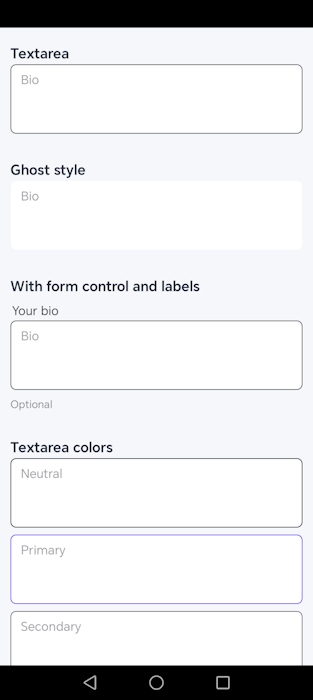
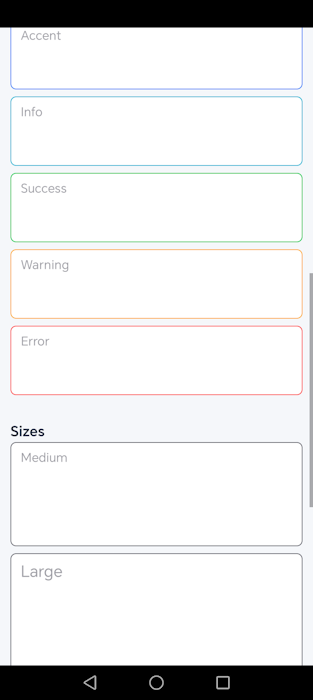
Key Features You'll Love:- Built-in DaisyUI Themes: Choose from stunning color variants like Primary, Secondary, Accent, Success, Warning, and Error directly from the designer or via code.
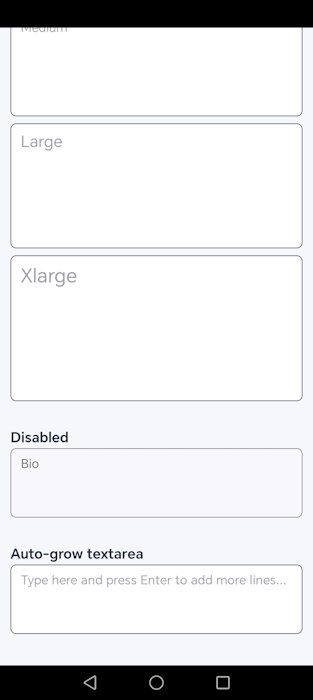
- Auto-Growing Capability: Set AutoHeight = True and watch the Textarea dynamically expand to fit the user's content as they type—no more messy scrollbars on small text!
- Flexible Sizing & Styling: Easily adjust corners (e.g., rounded-xl, rounded-full), sizes (md, lg, xl), and choose from various styles like the borderless "Ghost" mode.
- Smart Form Controls: Supports floating labels, hint texts, character counting limits (MinLength, MaxLength), and built-in Regex validation states (valid or error).
🛠 Beginner-Friendly Usage Example
To make onboarding incredibly easy, here is a quick snippet showing how you can initialize the component programmatically, set up its Textarea properties, and trap the most useful user events!
B4X:
' 1. Declare the component in Class_Globals
Private myTextArea As B4XDaisyInput

' 2. Inside B4XPage_Created (or Activity_Create)
' Initialize and add it to your Root view programmatically
myTextArea.Initialize(Me, "myTextArea")

' The AddToParent method creates the view and applies default properties [14]
myTextArea.AddToParent(Root, 20dip, 20dip, Root.Width - 40dip, 120dip)

' 3. Configure the component to act as an Auto-Growing Textarea!
myTextArea.SingleLine = False         ' Enable multiline Textarea mode [2]
myTextArea.AutoHeight = True          ' Textarea will grow as you type [3]
myTextArea.Variant = "primary"        ' Apply a beautiful purple/primary border [2, 8]
myTextArea.LabelAbove = "Your Bio"    ' Add a title above the box [2, 8]
myTextArea.Placeholder = "Type here and press Enter to add more lines..." [2, 11]
myTextArea.Radius = "rounded-lg"      ' Soft rounded corners [2]

' Always call UpdateTheme after manually changing properties in code to apply visuals! [15]
myTextArea.UpdateTheme

' ==========================================
' 4. Trap Component Events Easily [1]
' ==========================================

' Triggered every time the user types or deletes a character
Private Sub myTextArea_TextChanged (Old As String, New As String)
    Log("User is typing... Current text: " & New)
End Sub

' Triggered when the textarea gains or loses focus
Private Sub myTextArea_FocusChanged (HasFocus As Boolean)
    If HasFocus Then
        Log("The user is currently inside the textarea!")
    Else
        Log("The user left the textarea. Final text: " & myTextArea.getText) [16]
    End If
End Sub
Let me know what you think of this setup or if you have any questions on implementing it in your own B4A projects. #SharingTheGoodness!
