
Hello Fam! 
Are you looking to give your apps a modern, clean, and highly interactive feel? I'm excited to introduce the B4XDaisyIconButton — a highly customizable, cross-platform UI component inspired by the gorgeous DaisyUI framework.
Whether you are building for Android, iOS, or Desktop, this component takes the hassle out of designing beautiful buttons, allowing you to focus on your app's logic.
 Key Features:
 Quick Start / Usage Example: We built this to be incredibly beginner-friendly. Here is a simple code snippet showing how to initialize the component programmatically, set a few styling properties, and handle the click event.
I hope this component saves you tons of UI development time. Happy coding! Let me know if you have any questions or feedback.
#SharingTheGoddness
Are you looking to give your apps a modern, clean, and highly interactive feel? I'm excited to introduce the B4XDaisyIconButton — a highly customizable, cross-platform UI component inspired by the gorgeous DaisyUI framework.
Whether you are building for Android, iOS, or Desktop, this component takes the hassle out of designing beautiful buttons, allowing you to focus on your app's logic.
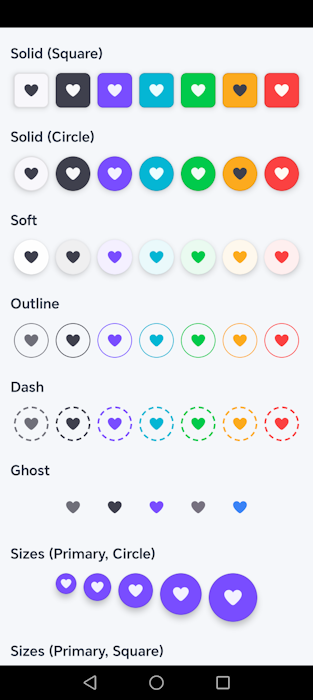
Key Features:- 10 Color Variants: Choose from semantic colors like primary, secondary, accent, info, success, warning, error, and neutral to perfectly match your app's theme.
- 6 Distinct Styles: Go bold with solid, keep it subtle with soft or ghost, or get creative with outline, dash, and link styles.
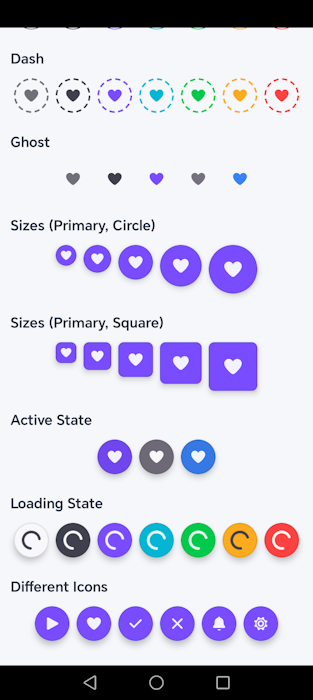
- Shapes & Sizes: Fully responsive sizes ranging from xs (extra small) to xl (extra large). Instantly toggle between square (with adjustable rounded corners) and circle shapes.
- Built-in States: Easily manage Active, Disabled, and Loading (animated spinner) states with a simple property change! No need to write complex animation logic yourself.
- Fully Designer Compatible: Tweak padding, margins, colors, and more directly from the B4X Visual Designer.
Quick Start / Usage Example: We built this to be incredibly beginner-friendly. Here is a simple code snippet showing how to initialize the component programmatically, set a few styling properties, and handle the click event.
B4X:
' --- 1. Declare the component in Sub Class_Globals ---
Private btnPlay As B4XDaisyIconButton

' --- 2. Initialize and configure in B4XPage_Created ---
Private Sub B4XPage_Created (Root1 As B4XView)
    Root = Root1

    ' Initialize with the current module (Me) and the event prefix ("btnPlay")
    btnPlay.Initialize(Me, "btnPlay")

    ' Create the actual View object (e.g., 56dip for an XL button)
    Dim btnView As B4XView = btnPlay.CreateView(56dip)
    Root.AddView(btnView, 50dip, 50dip, 56dip, 56dip) ' Add to layout

    ' Set up the properties programmatically
    btnPlay.setIconAsset("play.svg")       ' Set your SVG icon
    btnPlay.setVariant("primary")          ' Apply the 'primary' color variant
    btnPlay.setStyle("solid")              ' Use a solid background
    btnPlay.setShape("circle")             ' Make it perfectly round
    btnPlay.setSize("xl")                  ' Extra large size

    ' Optional: Add a custom payload to the button's tag
    btnPlay.setTag("PlayMusic")
End Sub

' --- 3. Trap the Click Event! ---
' The event signature passes the 'Tag' as an Object payload
Private Sub btnPlay_Click (Tag As Object)
    Log("Button Clicked! Payload: " & Tag)

    ' Example: Show loading state while processing
    btnPlay.setLoading(True)

    ' Simulate a network request or heavy task...
    Sleep(2000)

    ' Stop loading state once done
    btnPlay.setLoading(False)
End Sub
I hope this component saves you tons of UI development time. Happy coding! Let me know if you have any questions or feedback.
#SharingTheGoddness
