Android Question My persistent problem with printing.lib

wdegler

Active Member
Licensed User
Longtime User
When I open my .b4a app, the error message appears:
"Maven artifact not found: com.android.support/support-v4".

I have already tried the suggestions given to others with the same symptom.
Therefore, I am attaching the following files:
1. Installed Components as shown in Android SDK manager
2. Selected Libraries as shown in the Libraries Manager list
3. Additional Libraries in folder as shown in my Path Configuration:
C:\Program Files (x86)\Android\android-sdk\addLibs
4. Manifest the manifest.

If anyone can find the problem, I would be very grateful as I have spent much time
researching this matter. I want to create and print PDF files with b4a.
 

Attachments

  • Installed components.txt
    540 bytes · Views: 324
  • Selected Libraries.txt
    125 bytes · Views: 302
  • Additional Libraries.txt
    335 bytes · Views: 281
  • Manifest.txt
    576 bytes · Views: 257

wdegler

Active Member
Licensed User
Longtime User
Are you using B4A v6+?

If so then download B4A SDK Manager: https://www.b4x.com/android/forum/t...ewer-versions-of-android-tools.80090/#content
And install the latest version of Android SDK with the recommended components. Make sure to set the IDE to use the new SDK.

Thank you for your response.

Yes, I am using B4A v7.01

When I click on the link you supplied, I arrive at your tutorial with steps to follow. The first step is a link to an sdk tools download site.
However, nothing there is functioning as a download link:
Neither the blue "sdk-tools-windows" block nor the green "Download Android Studio" block above it start a download or link to another page..
How can I get past this first step?
How do I set the IDE to a new SDK when I get it?

Are you using B4A v6+?

If so then download B4A SDK Manager: https://www.b4x.com/android/forum/t...ewer-versions-of-android-tools.80090/#content
And install the latest version of Android SDK with the recommended components. Make sure to set the IDE to use the new SDK.
 
Upvote 0

DonManfred

Expert
Licensed User
Longtime User
When I click on the link you supplied, I arrive at your tutorial with steps to follow. The first step is a link to an sdk tools download site.
However, nothing there is functioning as a download link:
See the Source of the SDKManager B4J app. It is the only one attached download. -> B4ASdkManager_Source.zip
Download it, extract it, open the project it with B4J, COMPILE the App. Result is a JAR file in the projects Objects folder.
This jar file is an Executable jarfile... And this is the mentioned SDKManager
Start this app and follow the instructions from the Thread.
 
Upvote 0

wdegler

Active Member
Licensed User
Longtime User
Erel and Don:

I thank you both for your help; I think I'm almost there.
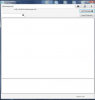
In following both your leads, I arrive at the same place: the screen shown in the file attached here.
I see B4ASdkManager.jar in my downloads folder. Executing it leads to the screen in the attached file.
SdkManager.bat is not in my system.
Where do I go from the screen shown in my attachment?

Walter
 

Attachments

  • 20170727Msg.png
    20170727Msg.png
    56.5 KB · Views: 230
Upvote 0

wdegler

Active Member
Licensed User
Longtime User
Erel:

This reply is the same as your original one above. I am continuing to research the matter.
It's possible I have the file in question already.

I appreciate your attention to this matter.

Walter
 
Upvote 0

DonManfred

Expert
Licensed User
Longtime User
I am continuing to research the matter.
The first step is
- Download the File for windows.

2. Create a folder for Android SDK. Don't put it under Program Files as it is a restricted folder. C:\android-sdk is a good option.

Create the folder C:\android-sdk

and extract the tools-folder from the downloaded windows sdk to C:\android-sdk

After that you´ll have C:\android-sdk\tools\*.*

Switch to SdkManager.jar. Start it again. Now you define the path for the needed sdkmanager.bat.
The file is in C:\android-sdk\tools\bin\sdkmanager.bat
Select it.
 
Upvote 0

wdegler

Active Member
Licensed User
Longtime User
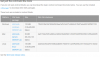
The first step is

- Download the File for windows.

Your first direction is to download the latest sdk tools: (link supplied).
I have attached a file showing that linked-to page.
I click on the blue-colored Windows option "sdk-tools-windows-3859397.zip".
Nothing happens (not really a link?)

Maybe, something is wrong with my computer?


Create the folder C:\android-sdk

and extract the tools-folder from the downloaded windows sdk to C:\android-sdk

After that you´ll have C:\android-sdk\tools\*.*

Switch to SdkManager.jar. Start it again. Now you define the path for the needed sdkmanager.bat.
The file is in C:\android-sdk\tools\bin\sdkmanager.bat
Select it.
 

Attachments

  • command line tools.png
    command line tools.png
    74.5 KB · Views: 230
Upvote 0

wdegler

Active Member
Licensed User
Longtime User
Thank you for the link, Don. I was able to download the file, create the folder C:\android-sdk, and extract the tools folder to it.

The last directions you gave are

Switch to SdkManager.jar. Start it again. Now you define the path for the needed sdkmanager.bat.
The file is in C:\android-sdk\tools\bin\sdkmanager.bat
Select it.

I searched for and found SdkManager.jar and tried to execute it but it wants SdkManager.bat. I found SdkManager,bat and tried to run it. Nothing happened. What directories should these two files be in?

I managed to get to the page shown in this attachment and entered the path C:\android-sdk\tools\bin\sdkmanager.bat at the top. The buttons AVD Manager and Install Selected are shown, but there is nothing in a list to select. I think about one more step is needed.

I admire your patience.

Walter
 

Attachments

  • 20170727Msg.png
    20170727Msg.png
    56.5 KB · Views: 234
Upvote 0
Top