
TLDR; A simple Windows desktop app I developed for syncing a local folder with a GitHub repository, without needing Git installed.

 github.com
How does this apply to B4X?
The app supports the command-line so you can push via Macros or ide links.
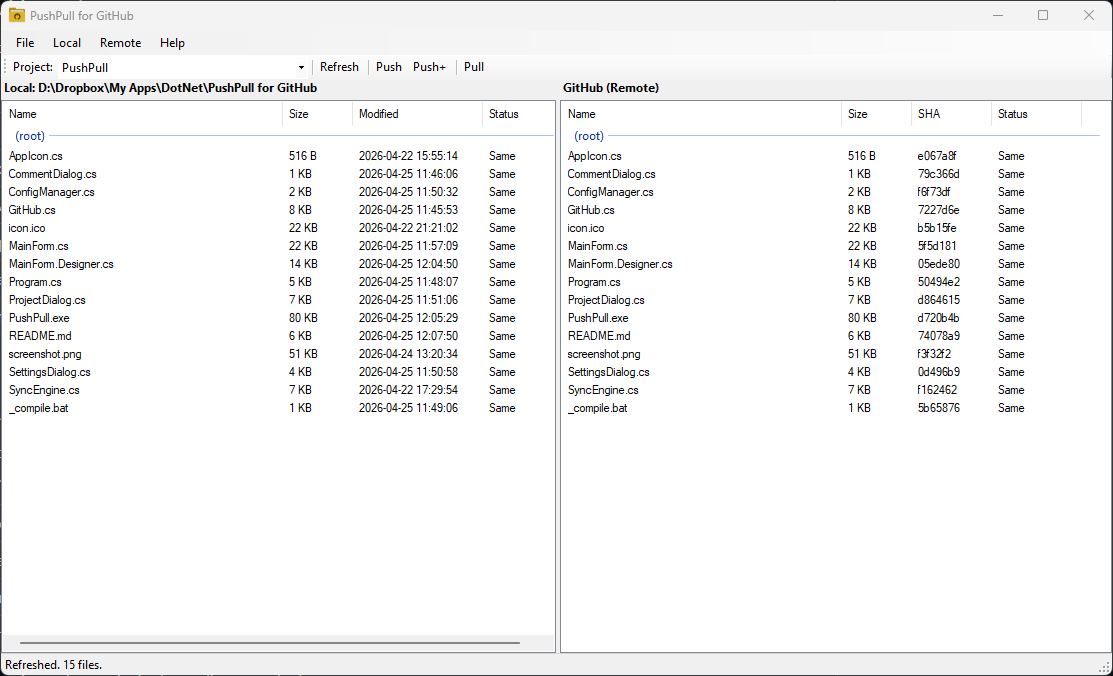
The UI is inspired by WinSCP so you can set up "Projects" (ie repos). The project can be referenced in the command-line interaction.
Aimed at solo developers and non-technical users who want to use GitHub for file backup and sharing but find Git, SSH keys, and the command line intimidating. If you just want to keep a folder in sync with a repo and don't need branching, merging, or a full Git workflow, PushPull gets out of the way and lets you do that with a few clicks.
Good for: scripts and config files you want backed up offsite, sharing assets between machines, lightweight version history without learning Git, or anywhere a full Git client feels like overkill.
GitHub - ope-nz/PushPull: GitHub for Dummies
GitHub for Dummies. Contribute to ope-nz/PushPull development by creating an account on GitHub.
github.com
How does this apply to B4X?
The app supports the command-line so you can push via Macros or ide links.
The UI is inspired by WinSCP so you can set up "Projects" (ie repos). The project can be referenced in the command-line interaction.
B4X:
#Macro: Title, Push to GitHub, ide://run?File=C:\Apps\PushPull\PushPull.exe&Args=MyProject&Args=push

' Open the UI (open with "MyProject" loaded)
'ide://run?File=C:\Apps\PushPull\PushPull.exe&Args=MyProject

 ' Push no comment required
 'ide://run?File=C:\Apps\PushPull\PushPull.exe&Args=PushPull&Args=push
 #Macro: Title, Push to GitHub, ide://run?File=C:\Apps\PushPull\PushPull.exe&Args=PushPull&Args=push

 ' Push with comment
 'ide://run?File=C:\Apps\PushPull\PushPull.exe&Args=PushPull&Args=push&Args=comment
 #Macro: Title, Push with Comment, ide://run?File=C:\Apps\PushPull\PushPull.exe&Args=PushPull&Args=push&Arcgs=comment
PushPull for GitHub
A simple Windows desktop app for syncing a local folder with a GitHub repository, without needing Git installed.Aimed at solo developers and non-technical users who want to use GitHub for file backup and sharing but find Git, SSH keys, and the command line intimidating. If you just want to keep a folder in sync with a repo and don't need branching, merging, or a full Git workflow, PushPull gets out of the way and lets you do that with a few clicks.
Good for: scripts and config files you want backed up offsite, sharing assets between machines, lightweight version history without learning Git, or anywhere a full Git client feels like overkill.
Features
- Connect to GitHub using a personal access token (no Git required)
- Register multiple projects, each linking a local folder to a GitHub repo
- Side-by-side file browser showing local and remote files (inspired by WinSCP)
- Files grouped by folder, with full relative paths shown for easy navigation
- Color-coded status: see at a glance which files are newer locally, newer on GitHub, or only exist on one side
- Push or pull individual files, all changed files, or all files in a folder (right-click)
- Local menu: delete selected or all local files (sent to Recycle Bin), open project folder in Explorer
- Remote menu: delete selected or all remote files, open the repo on GitHub
- Click column headers to sort by name or date
- Flexible ignore patterns: wildcards, file extensions, and folder names
- Restores your last project, window position, and size on startup
- Single instance: launching a second copy raises the existing window
- Command line support for opening a specific project or pushing without a UI
Attachments
Last edited:


